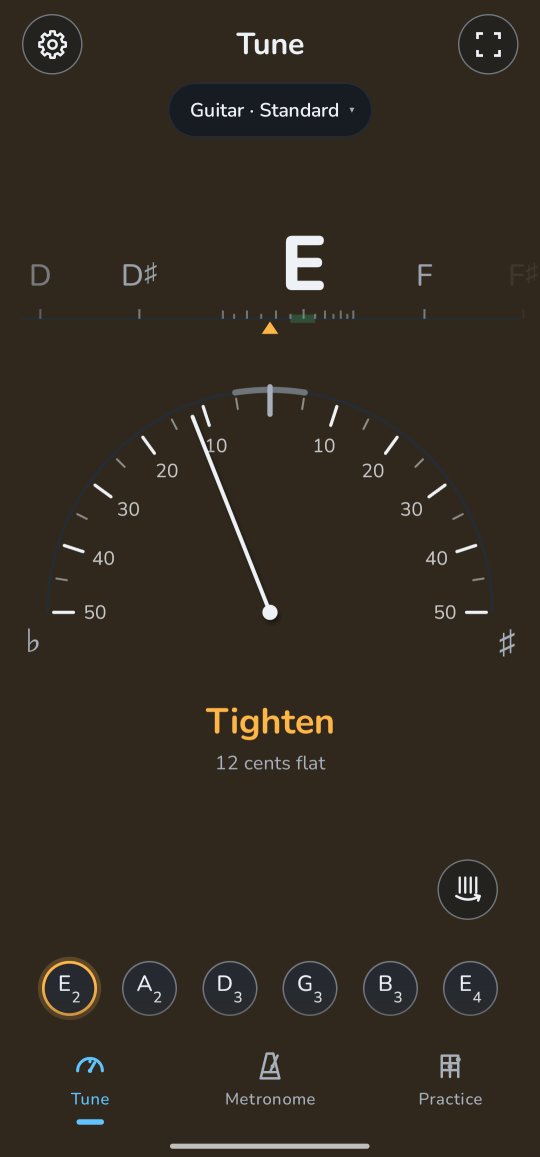
The tuner
Play one string. The row of note names at the top shows its note, and the meter under it how far it is from being in tune.
Tune a string
- Tap the name at the top, Guitar · Standard under Tune, and pick your instrument and tuning in What are you tuning?.
- Play one string and let it ring.
- Turn the peg the way the word under the meter says, Tighten or Loosen, until the needle stands in the green zone at the top and the word says In tune.
The needle swings left when the string is flat and right when it is sharp, along a scale marked every 10 cents up to half a semitone either way, with a tick for every cent near the note. The word and the whole screen go a soft amber while the string is far off, ease towards green as it comes close, and turn green once it is in tune, the needle too. Prefer another look? Settings → Meter has the needle (Classic), a fan of lights (Light arc) and a Strobe.
Your strings sit in a row along the bottom, and the one Twangle hears has a ring round it, in the same colour as the word. Twangle finds the string by itself. To stay on one string, tap it: it gets a small lock, Twangle says Play the A2 string and listens only for that one. Tap it again to let Twangle choose.
How far off: cents
A cent is a hundredth of a semitone, the step from one fret to the next. Under the word Twangle shows how many cents it is off, for example 12 cents flat (too low) or 8 cents sharp (too high). Know your way round a peg already? Set Settings → Under the meter to Cents: the cents then show big in the word's place, −12 or +8, and In tune still says so.
A note counts as in tune within 5 cents. For a tighter check, turn on Settings → Precise tuning (Settings is the gear at the top left): then it is within 2 cents. In Settings you can also have the phone give a short buzz when a note reaches pitch. New to tuning? Turn on Settings → Tick off tuned strings: each string gets a check mark once it's in tune, and In tune. Play. shows when they all have one.
Strings or any note
What are you tuning? also picks how Twangle listens. With an instrument and tuning picked, Twangle compares what you play with the strings of your tuning, and shows them along the bottom; with Tick off tuned strings on, each string you've brought in tune since opening the tuner keeps a small check mark, so you can see which are done, until you play it clearly out of tune again. Any note, the switch at its bottom, names any note, for an instrument Twangle doesn't list, or for your voice; the name at the top then says Any note.
Your tuning
What are you tuning? lists the common tunings of each instrument: for the guitar Standard, Drop D, DADGAD, open tunings and more. Lower by, near its bottom, takes any tuning down by up to 2½ steps. New tuning, at the end of the list, makes a tuning of your own.
Tune by feel
With the Vibration guide on, the phone taps while the tuner hears a string, so you can tune without looking at the screen. One tap: tighten. Two taps: loosen. The taps come quicker as the string gets close, then one long buzz says it is in tune, and the phone goes quiet while the string holds. Pluck again, or play the next string, and the taps start afresh.
Turn it on in Settings → While tuning → Vibration guide. With TalkBack on it is on by itself, until you set it yourself. The taps make no sound, so they never disturb what the tuner hears. You feel them best with the phone in a pocket or on your lap rather than on a table. On the watch the same taps come on your wrist.
Tune by ear
Hold a string's button to hear its note, in your instrument's own sound: a plucked string for the guitar, a bowed one for the violin. It sounds for about four seconds; tap any string to stop it sooner. The phone's volume keys set how loud it is. While the note sounds, the tuner doesn't listen, so it never tunes to itself.
Playing with others
Most music tunes the A above middle C, called A4, to 440 Hz. Orchestras often tune to 442 Hz, baroque ensembles to 415 Hz. Set it in Settings → Reference pitch (A4), anywhere from 415 to 466 Hz. Everything follows it: the tuner, the reference tones and the other tools.
When it can't hear you well
The tuner says so under the meter: Play a bit louder, Too noisy, move the phone closer, or Too loud, move the phone back. Hold the phone near your instrument, away from other sounds, and let the string ring rather than plucking it again and again.
For the curious: how Twangle hears a note
A plucked string repeats the same wave many times a second. About 47 times a second, Twangle takes the latest sound from the microphone (the last 85 milliseconds, twice that for low strings such as a bass's) and looks for how long it takes the wave to repeat, with the YIN method of Alain de Cheveigné and Hideki Kawahara (2002). That time gives the frequency, and the frequency gives the note and how many cents it is off. Twangle's own tests hold it to within one cent on test tones.
A new note shows once a few readings agree, and the reading is smoothed so it doesn't jitter, without lagging behind your peg.
For the curious: why Twangle asks for the unprocessed microphone
For calls and video, a phone cleans up the microphone's sound: it evens out the volume and takes away what it thinks is noise. That cleaning changes a note's wave, so the pitch can read wrong and a dying note can vanish. Twangle asks Android for the microphone's sound unprocessed, or, on phones that don't offer that, the sound meant for speech recognition with the cleaning turned off.
The sound is only analysed, while the tuner is on the screen. It is never recorded, saved or sent anywhere: Twangle has no permission to use the internet.