Metronome
Steady time from 30 to 250 beats a minute, in six meters, with four click sounds and, if you like, softer clicks between the beats. It can also listen to a song and find its tempo for you.
Start the clicks
- Tap the Metronome tab.
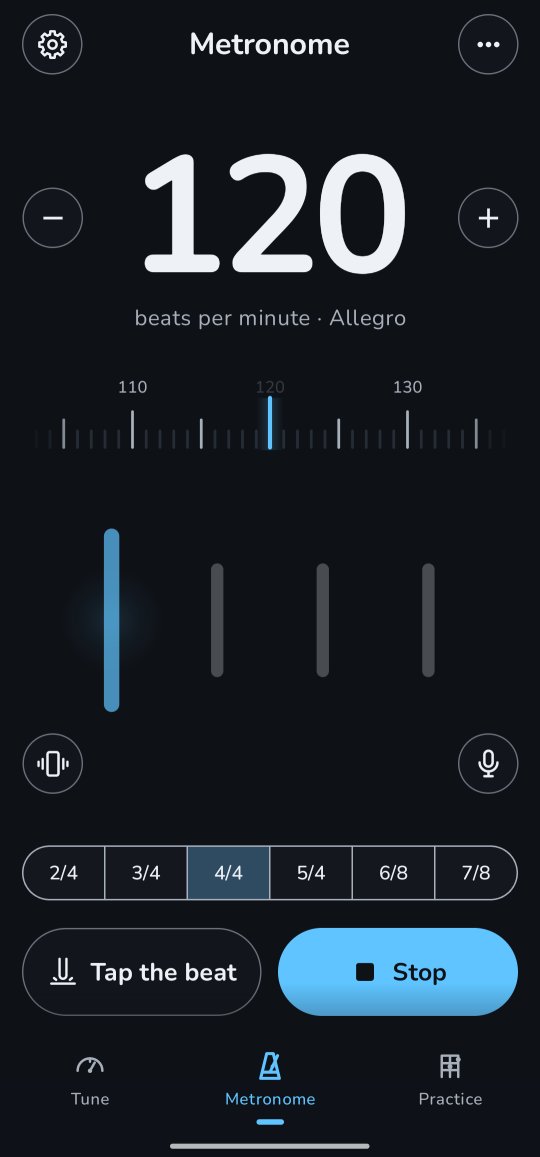
- Set the tempo, the big number at the top: drag the ruler under it sideways (to the left for faster; flick it to go far), tap a mark on it to jump there, or tap − and + beside the number for one beat a minute slower or faster. Under the number stands the tempo's Italian name, from Grave to Prestissimo; 120 is Allegro.
- Pick the beats in a bar under the beat lights: 2/4, 3/4, 4/4, 5/4, 6/8 or 7/8.
- Tap Start, the big button at the bottom. The lights under the ruler show each beat as it clicks.
Changes are heard from the next beat, so you can set the tempo or the meter while it plays. A new metronome starts at 120 in 4/4.
Tap the beat
Know the speed but not the number? Tap Tap the beat, beside Start, in time with the song, or with the beat in your head. From the second tap the number shows the tempo, worked out from up to your last six taps, so one tap a little early or late hardly moves it. Stop for more than two seconds and the next tap starts afresh.
Listen: the tempo of a song
- Play the song nearby, on a speaker or another phone. Tap Listen, the round microphone button at the right end of the row under the beat lights. The first time, Twangle asks for the microphone.
- The clicks pause, so the microphone hears only the song. Beside the button, the row under the beat lights says Listening…, then the tempo it is settling on. The button shows a stop square now: tap it to stop listening.
- Once it is sure, within 15 seconds, a balloon shows what it Heard. Pick half, as heard or double if the song feels twice as slow or fast, then tap Use to set it, or Not now to keep your tempo.
Music without a steady beat gives No steady beat heard, with Try again; if a call or another app has the microphone, it says Microphone is busy. The microphone is only on while it listens, and nothing is recorded.
Meters and accents
The first beat of the bar clicks higher and louder, and its light is the biggest. Longer bars are split into groups the usual way, and the start of each later group gets a middle accent:
- 2/4, 3/4, 4/4: only beat 1.
- 5/4: 3 + 2, so beat 4 too (as in Take Five).
- 6/8: 3 + 3, so beat 4 too.
- 7/8: 2 + 2 + 3, so beats 3 and 5 too.
In 6/8 and 7/8 the metronome clicks every eighth note, and the tempo counts those clicks, as most practice metronomes do.
The click sound
In the options panel (⋯ in the top right corner), under Sound, pick the wood block (the first), the cowbell, the claves or the rim click. While it is stopped, a pick plays one bar so you can hear it; while it plays, the new sound comes in on the next beat. Vibrate on the beat, the round button with a shaking phone at the left end of the row under the beat lights, makes the phone buzz with every click, harder on beat 1: handy with headphones on, or for a beat you can feel. The button is filled in while it is on.
Clicks between the beats
For keeping a strumming pattern or your picking even, or for feeling triplets, the metronome can add softer, lower clicks between its beats. In the options panel, under Between the beats, pick none (a single note, the first), eighths (two notes), triplets (three notes with a 3) or sixteenths (four notes). As with the sounds, a pick plays one bar while it is stopped, and comes in on the next beat while it plays. The beat lights show them too: a small dot for each click between the numbered bars for the beats, there as soon as you pick, so triplets show in groups of three before you start. Each small dot lights up softly as its click sounds (when they come too fast to follow, above 200 BPM in sixteenths, only the beats light). The vibration stays on the beats. While clicks play between the beats, their note shows on the line under the beat lights.
In 6/8 and 7/8 a click is already an eighth note, so there you can pick none or two clicks to a beat, which are sixteenths; triplets and sixteenths are greyed out. If you picked one of them in another meter, 6/8 and 7/8 play the beats alone, and your choice comes back when you switch back.
The speed trainer
The usual way to learn a fast passage is to start slower and speed up bit by bit. Turn on Speed trainer with the switch on its row in the options panel; the first time it opens its settings, filled in from the tempo: Start tempo and Goal (with − and +, in steps of 5), the Step (+1, +2, +5 or +10 beats a minute) and how many Bars each step lasts (1, 2, 4 or 8). Tap the row to change them; tap beside them or press Back to close them. While it is on, its words also show between the two round buttons under the beat lights; tap them to change its settings or turn it off.
Press Start: the metronome plays from the start tempo and steps up on the first beat of a bar until it reaches your goal, then holds it there. The number and the ruler follow, a small dot under the ruler marks the goal, and the trainer's words read, say, 95 → 120 · +5 in 2 bars, then At the goal · 120 BPM. Stop and Start begin again from the start tempo. Changing the tempo yourself, with the ruler, − or +, Tap the beat or Listen, ends the trainer and keeps the tempo where it was.
Good to know
- It plays over music from another app without lowering or pausing it, so you can practise with a backing track.
- The phone's media volume sets how loud it is. The screen stays on while it plays.
- It stops by itself when a call comes in, when headphones are unplugged, and when you switch to another tool or tab.
- With TalkBack, the ruler is a slider (Tempo) and the meters are said in words, Four-four time.
For the curious: how it keeps time
A metronome that adds up rounded gaps drifts a little with every beat. Twangle works out where each beat falls in the sound itself, counted from the moment the tempo was set, to within half a sample (about a hundredth of a millisecond). Ten minutes at 120 beats a minute on a Xiaomi 12X ended within 0.02 milliseconds of a perfect clock.
The clicks are made by the app, not recorded. The wood block is a struck wooden bar, its two ringing tones at the ratio such a bar has (after Fletcher and Rossing's book on musical instruments); the cowbell, claves and rim click are struck the way Chaigne and Doutaut (1997) model a mallet hitting a bar: a harder hit is shorter, so it sounds louder and brighter. Every bar sounds exactly the same, on every phone.
For the curious: how Listen finds the beat
About 200 times a second Twangle measures how much the sound suddenly grows, in bands from low to high: a drum hit or a strum makes a peak. Then it looks for the spacing at which those peaks repeat over the last eight seconds, trying every whole tempo from 30 to 250 (after Scheirer, 1998, and Ellis, 2007). A song that fits one tempo also fits double and half, so it picks the level where the beats in between are clearly weaker. It calls a tempo steady once it has stayed within one beat a minute for four seconds.